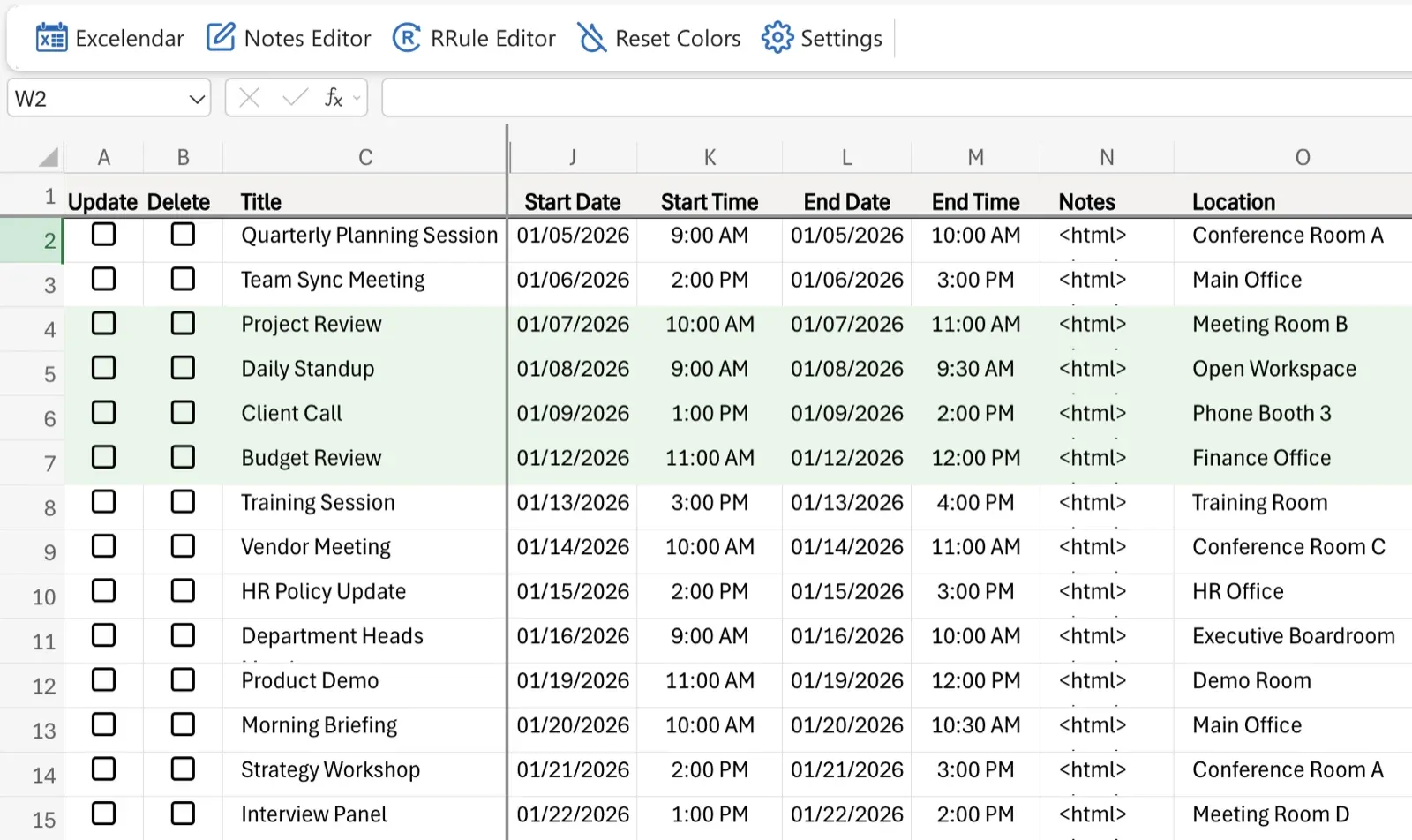
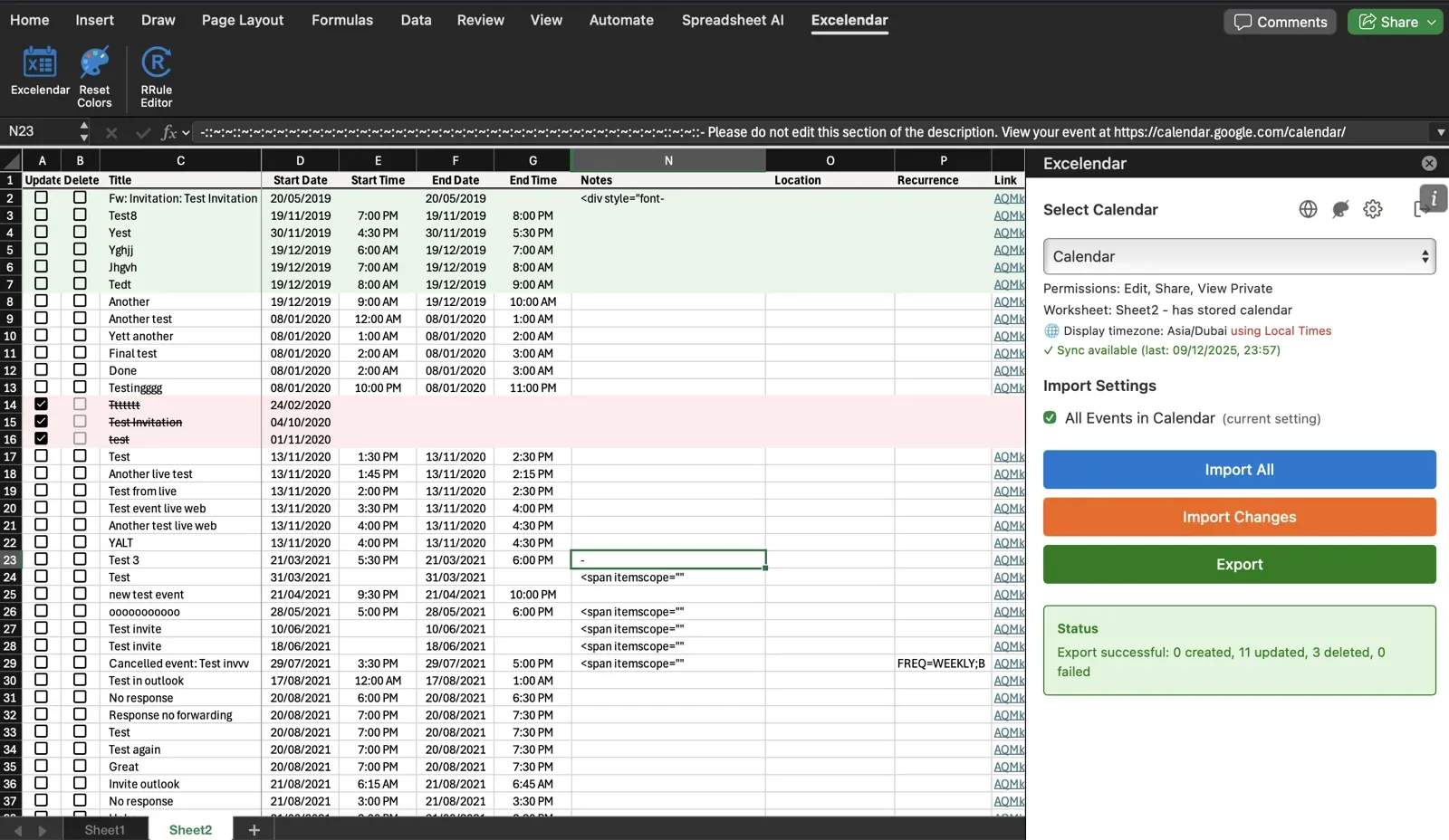
The Excelendar Excel Add-in brings powerful calendar management directly into Microsoft Excel, allowing you to leverage Excel's full capabilities for managing Outlook calendar events.
The Excel Add-in integrates seamlessly with Excel Online and Excel Desktop, adding calendar management functionality through a taskpane interface. It transforms Excel into a powerful calendar management tool while maintaining all of Excel's native features.
Installation
For Business/Work/School Accounts:
1. Search for "Excelendar" in Excel's Insert > Add-ins menu, or
2. Visit Microsoft AppSource and add Excelendar to your organization
For Personal Microsoft Accounts:
1. Subscribe at app.excelendar.com/subscribe
2. Open Excel and go to Insert > Add-ins
3. Search for "Excelendar" and add it
How It Works
The add-in uses a 1:1 mapping system:
One Excel Worksheet = One Outlook Calendar
One Row = One Calendar Event
One Column = One Event Property
This structure makes it intuitive to manage large numbers of events using Excel's familiar interface.
Key Features
Native Excel Integration
The add-in works within Excel, so you have access to all Excel features:
Formulas and calculations
Conditional formatting
Sorting and filtering
Charts and pivot tables
Copy and paste
Find and replace
Flexible Column Management
Rename columns without breaking functionality
Hide columns you don't need
Move columns to any order
Add custom columns for your own data
Use formulas to calculate event properties
Advanced Features
WYSIWYG Notes Editor in the Excel ribbon for editing event description HTML with ease
Visual RRule Editor in the Excel ribbon for recurring events
Import All Events or Import by Date Range
Two-way sync: Import Changes from Outlook
Timezone handling with Display vs Event times
Bulk delete operations
Support for attendees, categories, reminders, and more
Working with the Add-in
1. Open Excel and click the Excelendar button in the ribbon
2. Sign in with your Microsoft account in the taskpane
3. Select a calendar and import events
4. Make changes directly in Excel cells
5. The Update checkbox automatically marks changed rows
6. Click Export to push changes to Outlook
Best Practices
Use Import Changes for sync - Instead of re-importing everything, use Import Changes to update only what changed in Outlook
Leverage Excel's power - Use VLOOKUP, conditional formatting, data validation, and other Excel features to enhance your calendar management
Save your workbooks - Keep Excel files for recurring calendar management tasks. Each workbook can contain multiple calendars across different worksheets.
When to Use the Excel Add-in
The Excel Add-in is ideal when you:
Need to perform complex calculations on calendar data
Want to combine calendar data with other Excel data
Prefer working in Excel's familiar environment
Need to save calendar templates for reuse
Want to use Excel formulas to generate event properties