User Portal
The Excelendar User Portal is your central hub for managing your subscription, monitoring activity, and tracking usage across your organization. Access the portal at any time by visiting the portal page on the Excelendar website.
What You'll Find in the Portal
The portal gives you a comprehensive view of your Excelendar usage and subscription status, all in one convenient location.
License Status
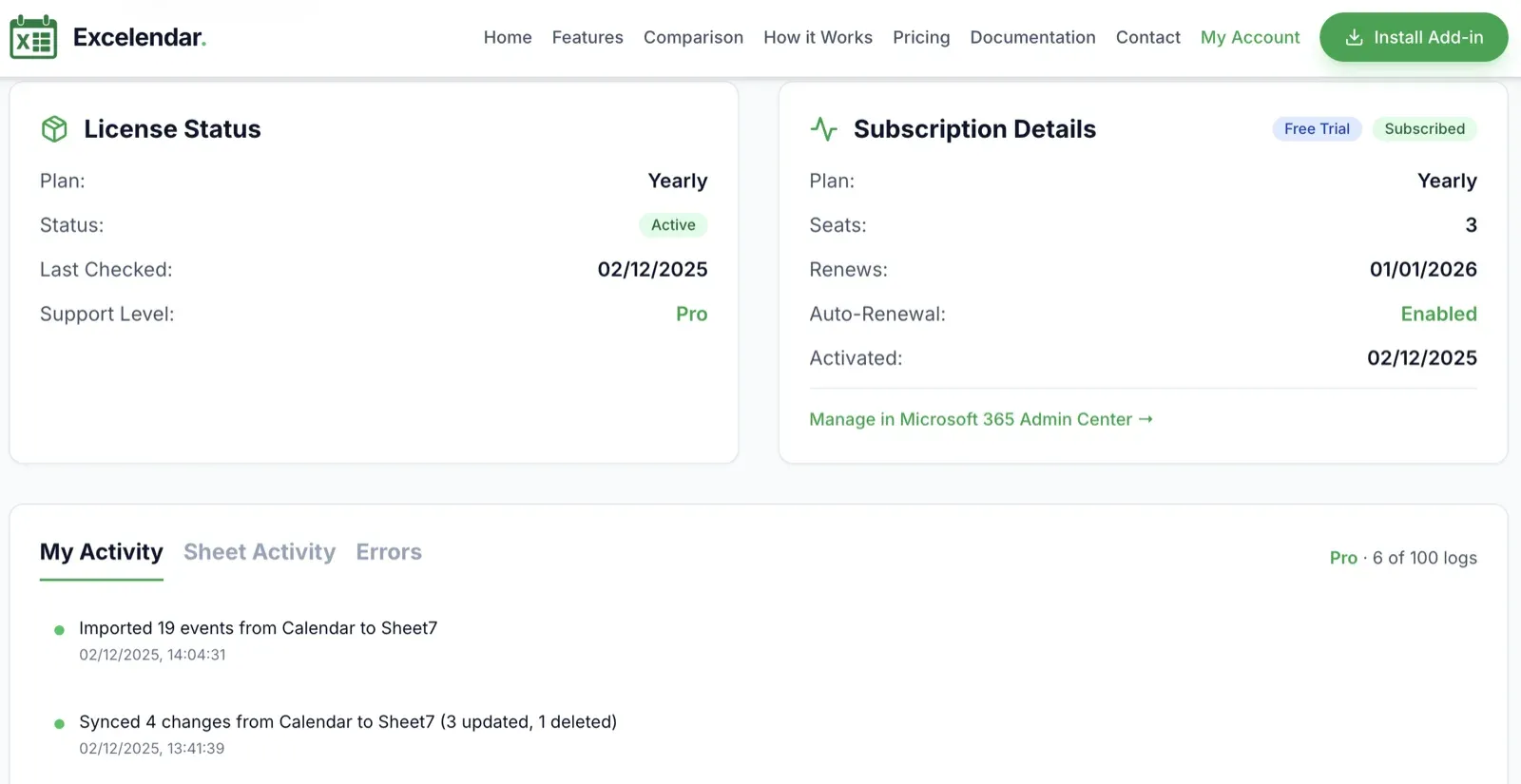
Stay informed about your subscription at a glance. The License Status section shows your current plan (Monthly or Yearly), subscription status, and support tier. You'll always know when your subscription was last verified and can quickly access links to purchase or manage your license through the Microsoft 365 Admin Center.
Subscription Details
If you're a subscription owner (the person who purchased or is the beneficiary of the subscription), you'll see detailed information about your subscription including the number of seats, renewal dates, and whether auto-renewal is enabled. This transparency helps you plan ahead and manage your team's access effectively.
Usage Insights
For team members, the portal displays valuable usage statistics showing how actively Excelendar is being used. See the total number of operations performed, events processed, and when the last activity occurred. These insights help you understand the value Excelendar brings to your workflow.
Activity Tracking
The Activity section is where you can monitor operations in detail. It features three convenient tabs:
My Activity
Track your personal import and export operations. See exactly what you've done, when you did it, and how many events were affected. This tab keeps a rolling history, giving you a complete audit trail of your work. Use the refresh button to see your latest operations.
Sheet Activity
Get visibility into team collaboration by viewing all operations performed on a specific worksheet by anyone in your organization. Simply enter a worksheet name and see who made changes, when they occurred, and what was modified. This is perfect for understanding how shared calendars are being managed across your team.
Errors
Stay on top of any issues with the Errors tab, which displays error logs from your operations over the last 30 days. Each error shows what operation failed, which worksheet and calendar were involved, and a clear error message to help you understand what went wrong. This proactive monitoring helps you catch and resolve issues quickly.
Settings
The Settings page gives you control over your account and data. Access it anytime from the portal header to manage:
Benefits of Using the Portal
The User Portal gives you peace of mind through transparency and control. You can verify your subscription status, track your usage patterns, monitor team activity, and troubleshoot issues—all without leaving your browser. Whether you're a solo user wanting to track your work or a team lead overseeing multiple users, the portal provides the insights you need to make the most of Excelendar.