Importing your first Calendar
When working with Excelendar it is important to understand that the add-in operates by assigning Calendars in Outlook to Excel Worksheets 1:1. This means that you cannot have multiple calendars in the same Worksheet, but each Worksheet in a single Workbook can have a separate calendar.
Thus, one workbook contains multiple Worksheets which each correspond to one calendar. One row corresponds to one event (which can be a repeat series when using "All Events"), and one column corresponds to one event property.
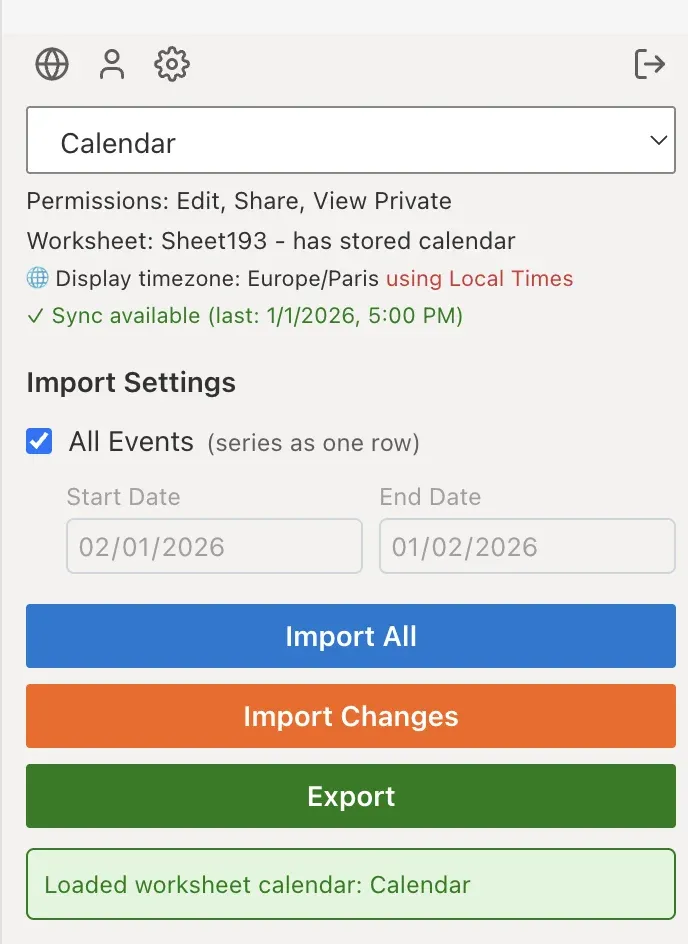
To import a calendar into an Excel sheet, open the taskpane via the "Excelendar" button in the ribbon bar. Once opened and authenticated, select a calendar from the dropdown and choose whether you want to import all events of a calendar (repeat series are defined in a single row) or a date range (every repeat occurrence is displayed). You can then press on Import. Note that this will clear a certain range of the sheet depending on the number of rows and columns you are importing.
The buttons at the top of the taskpane open the Web App (globe icon), your User Portal (user icon) and the Settings (gear icon)