
Bulk-Edit Outlook Events with Excel's Find and Replace
To bulk-edit Outlook events, change them in Excel with Find and Replace and export with Excelendar: every changed row is ticked for Update, and all the changes reach Outlook in a single pass. There’s no fixing each booking by hand.
This guide renames a venue across every gig booked there.
1. Find what needs changing
Harbour Hall in Brighton is now called Harbour Arts Centre, and two of the gigs are booked there.
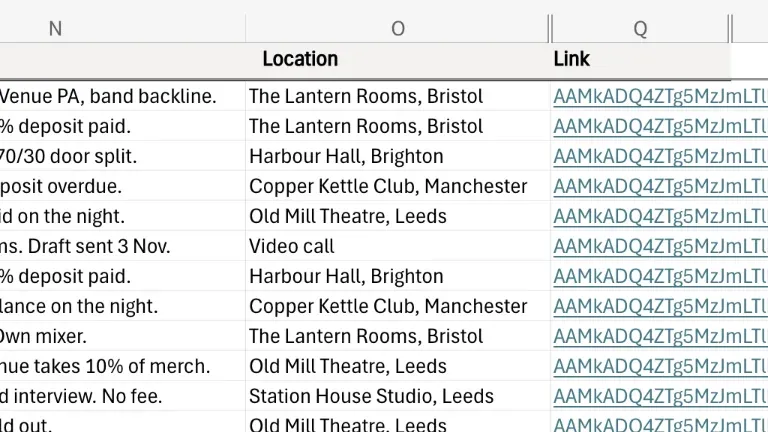
2. Use Excel’s Find and Replace
Open Excel’s own Find and Replace, swap the old name for the new one, then click Replace All.
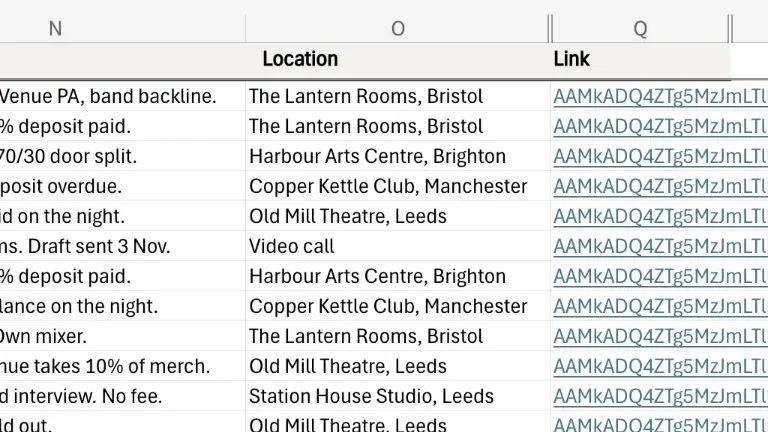
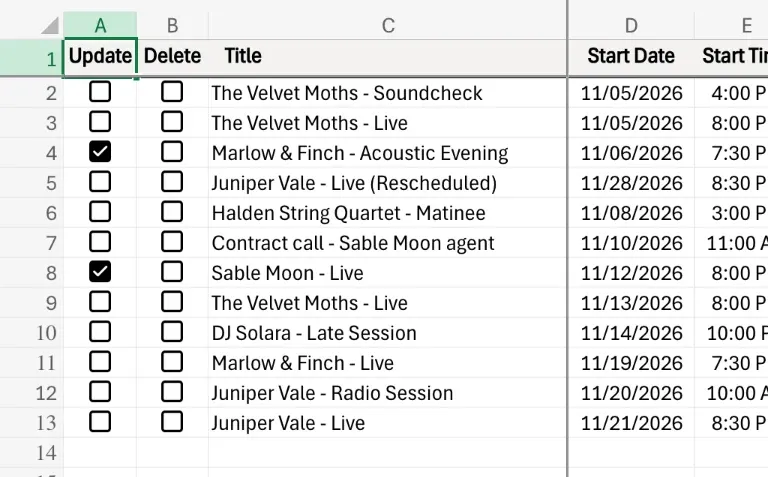
3. Every changed row is ticked for Update
Both rows are ticked for Update straight away, and nothing else is.
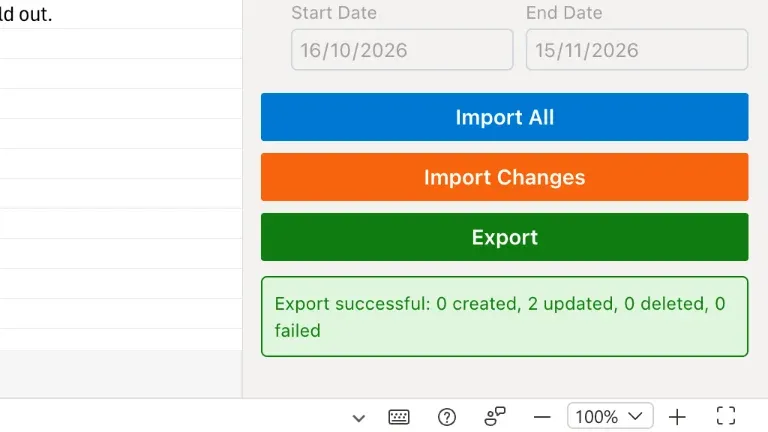
4. Export
Open the Excelendar pane and click Export. Both events change in a single pass.
5. Check an event in Outlook
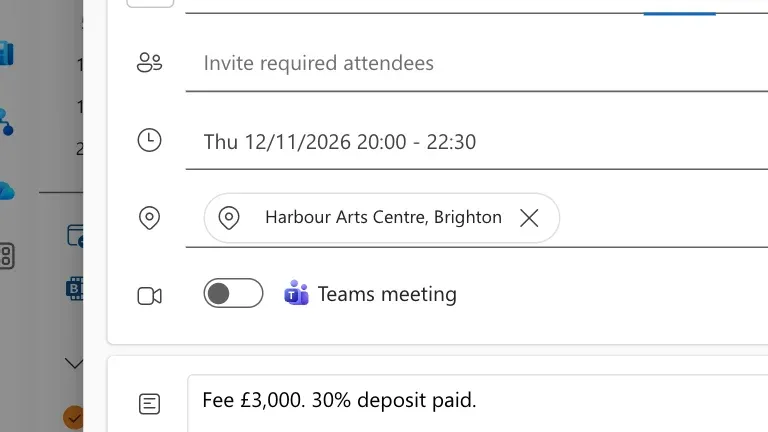
Follow a row’s link, and Outlook already shows the change.
Try it
Fill, paste, formulas: whatever you do in a spreadsheet syncs right to your calendar. Get Excelendar, and see the documentation for every option.