Create Outlook Calendar Events from an Excel Spreadsheet
To create Outlook calendar events from an Excel spreadsheet, put one event per row and export the sheet with the Excelendar add-in: every row becomes an Outlook event, with its title, times, location and notes. There’s no typing each event in by hand, and each row then links straight to its event.
This guide follows an events organiser’s sheet of twelve gigs, from the spreadsheet to a full November in Outlook.
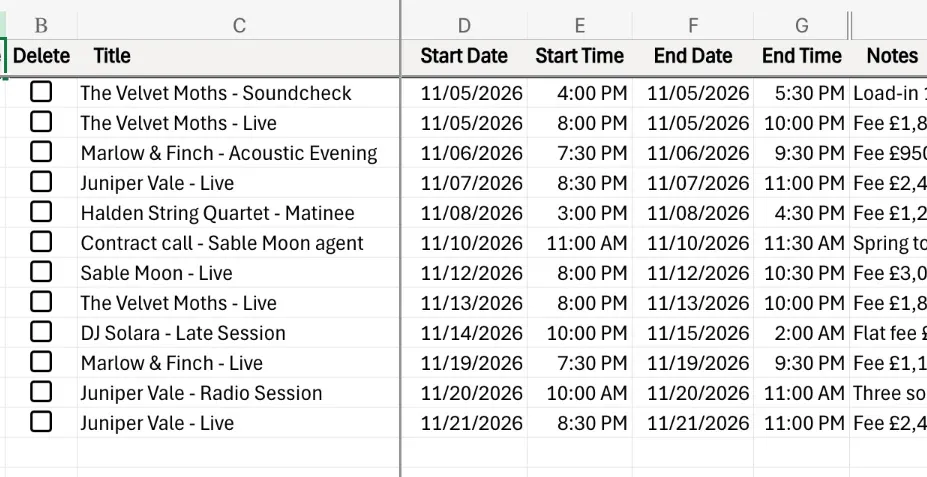
1. One event per row
The sheet is set up for Excelendar, so each row is one event: the act in Title, the start and end dates and times, the contract details in Notes, and the venue in Location.
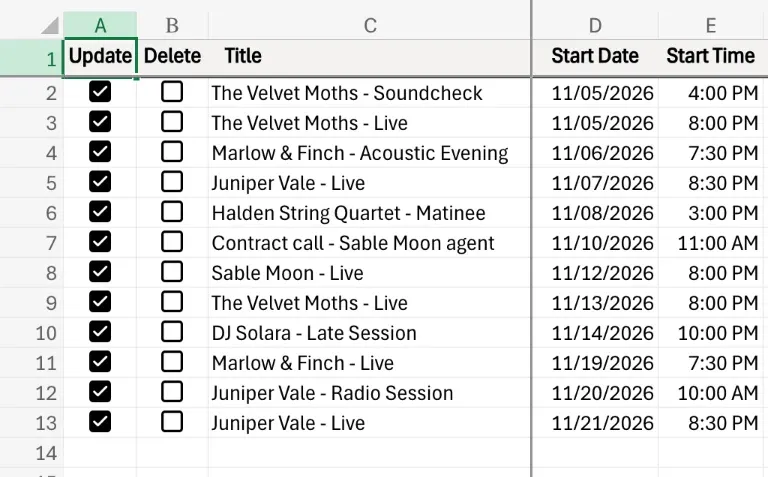
2. Rows to send are ticked for Update
Any row you add or change is ticked for Update automatically, so all twelve gigs are ready to go.
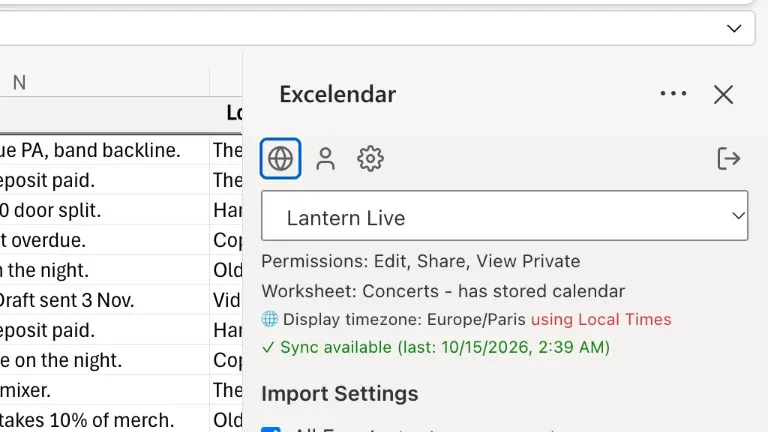
3. Open the Excelendar pane
From the ribbon, open the Excelendar pane. The calendar you’re exporting to is right at the top, here Lantern Live.
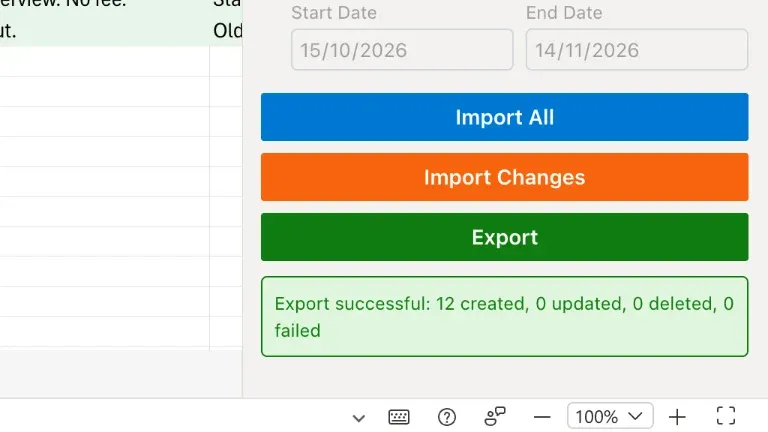
4. Click Export
Click Export, and Excelendar creates every event for you. A few seconds later the status reads “Export successful”.
5. Each row links to its event
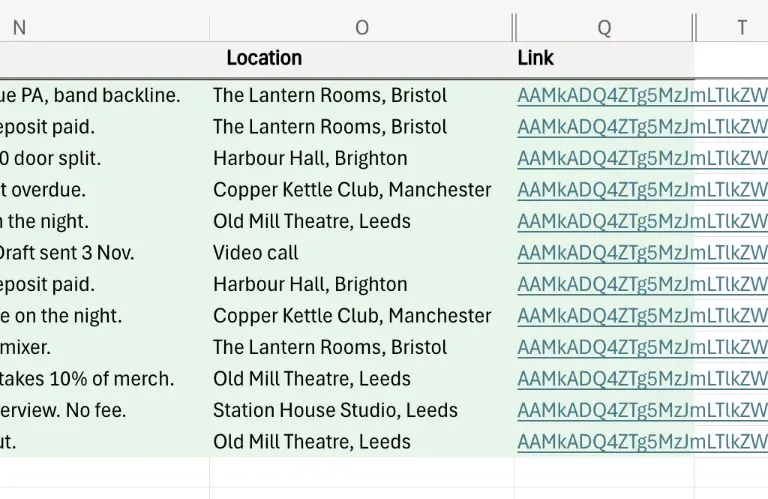
Close the pane, and every row now has a link to its event in Outlook, with its Update box cleared.
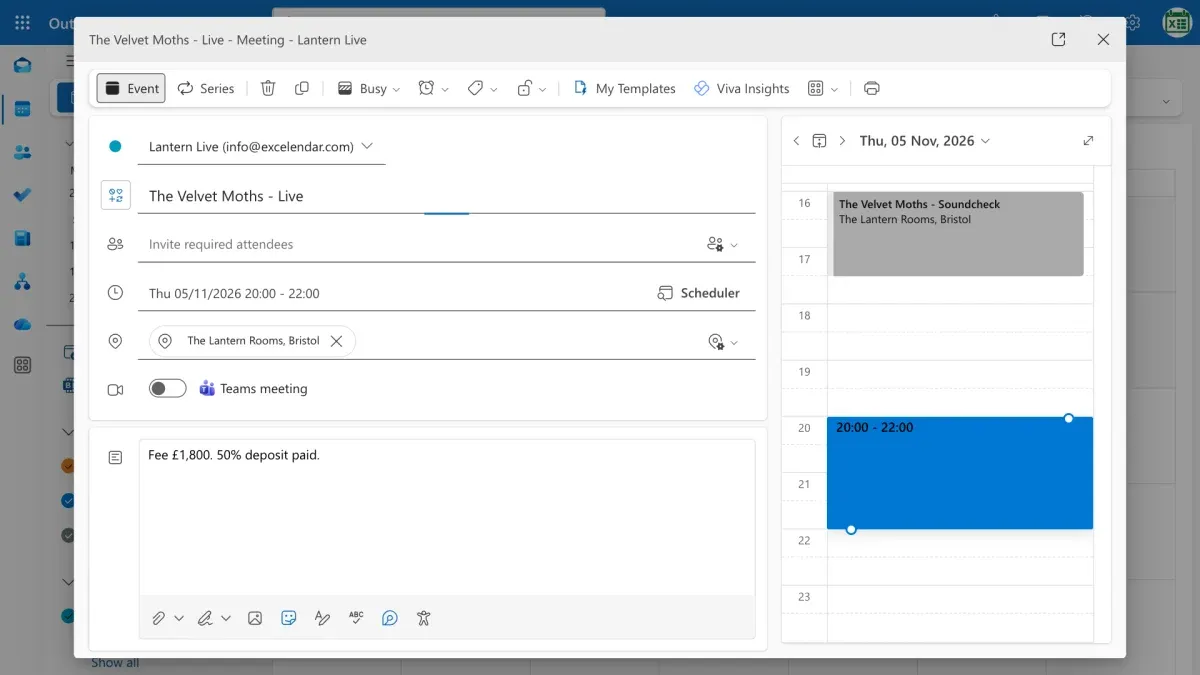
Click a link and the event opens, with the venue and contract notes included.
The result
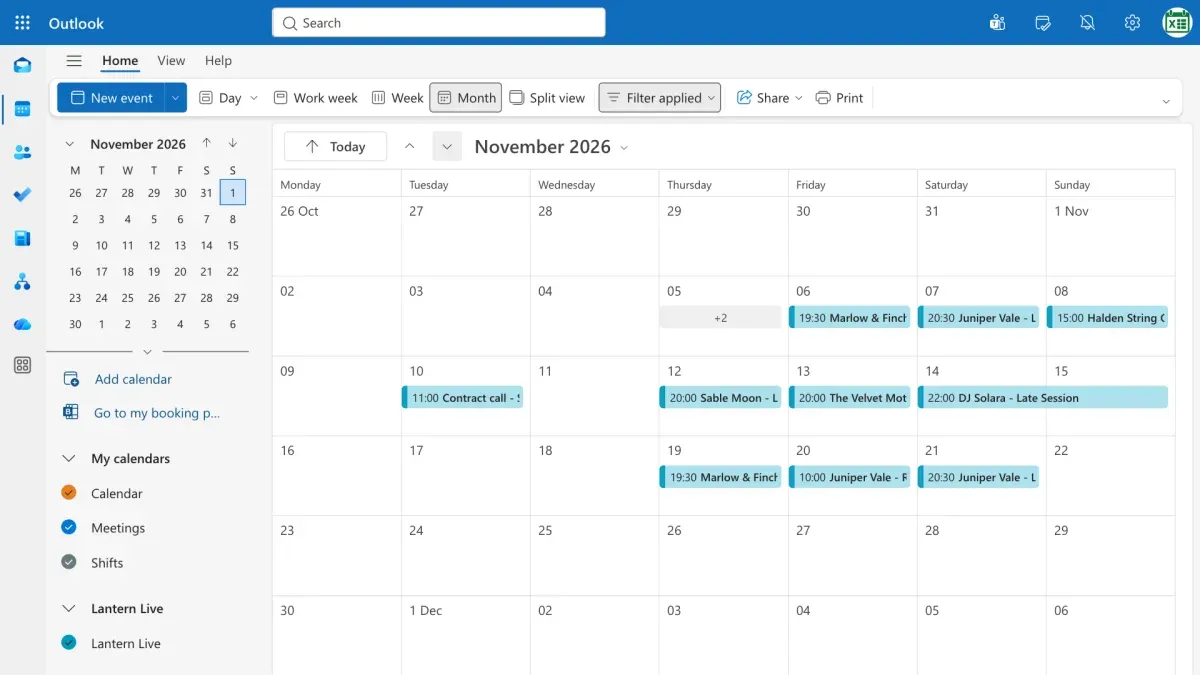
Here’s the whole of November in Outlook: every show at exactly the right time.
Try it
Try it with your own schedule: get Excelendar, and see the documentation for every option.