Sync Outlook Events from Your Team's Existing Excel Sheet
To put a team spreadsheet’s meetings in Outlook without changing it, add an Excelendar sheet beside it whose cells are formulas pointing at the team’s tab, then export. When someone edits a meeting in the team’s sheet, the formulas follow, the row is ticked for Update, and the next export moves the event.
This guide connects a team’s Meetings tab to a Client Meetings calendar.
1. The team’s sheet stays as it is
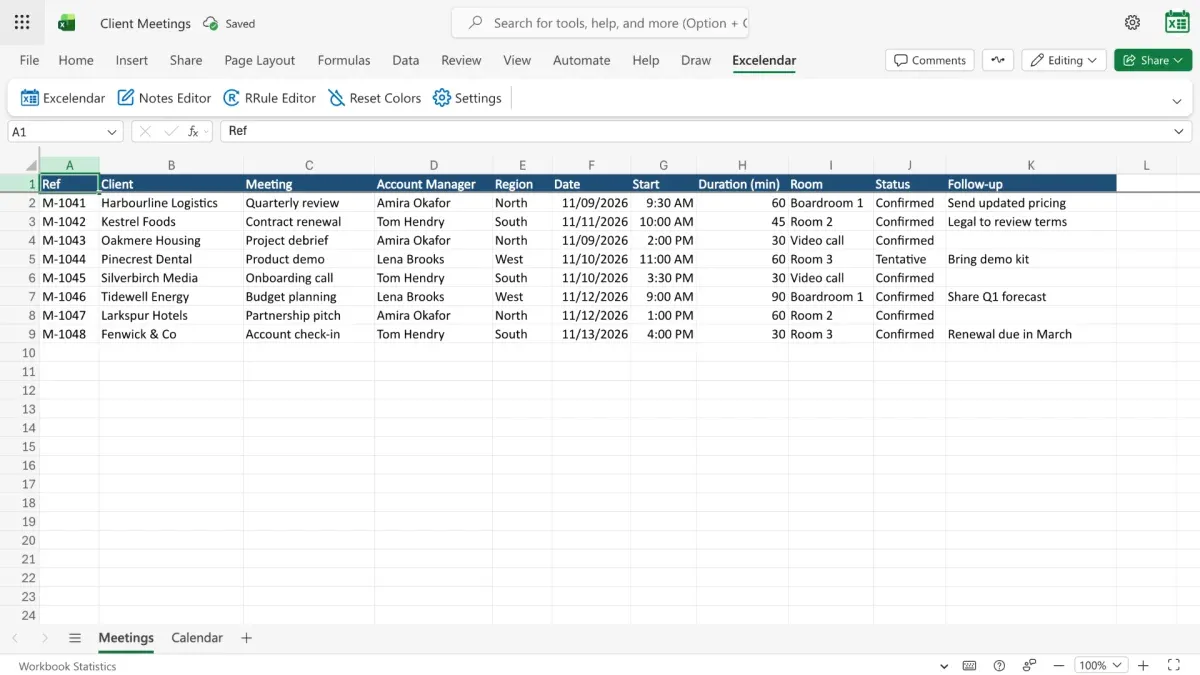
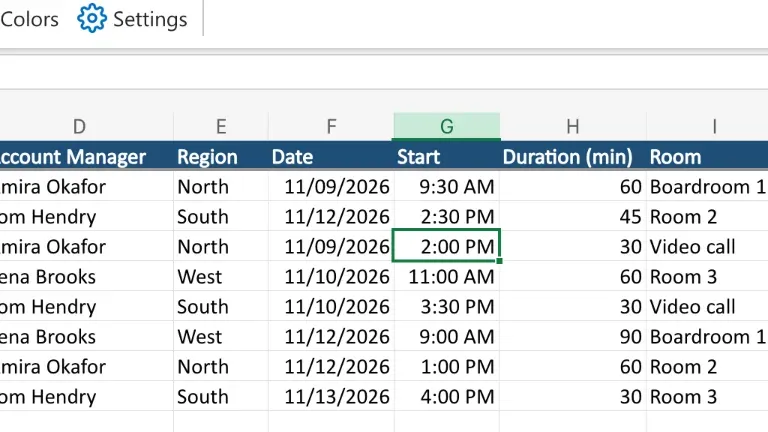
The team keeps its meetings on a Meetings tab: eleven columns, one meeting per row. It won’t be changed.
2. Set up a Calendar sheet
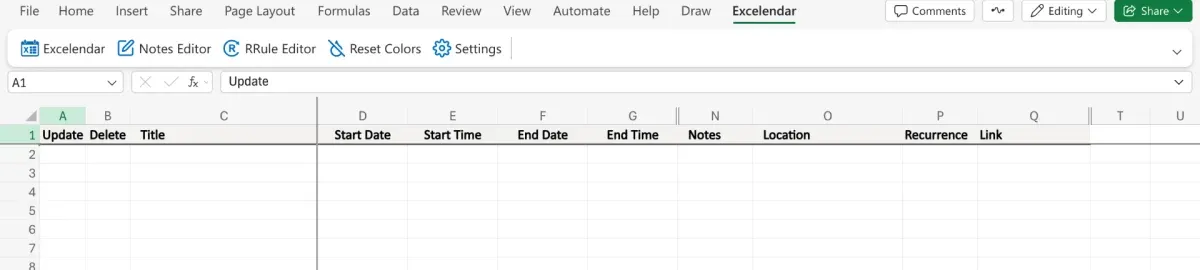
On a blank sheet, open the Excelendar pane, choose the empty Client Meetings calendar and click Import All. That sets up the headings.
3. Pull each column with a formula
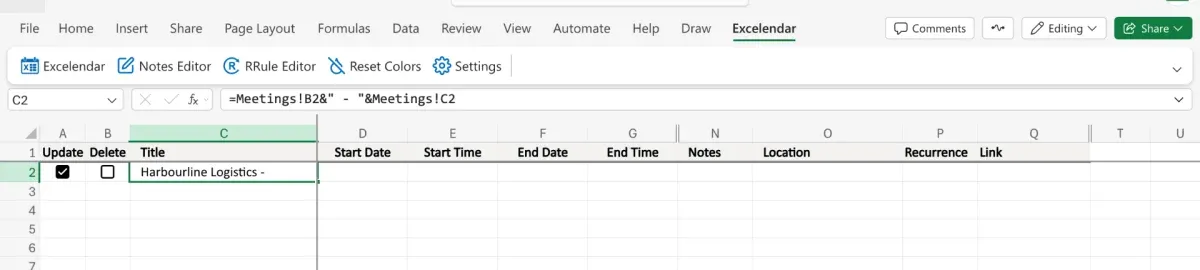
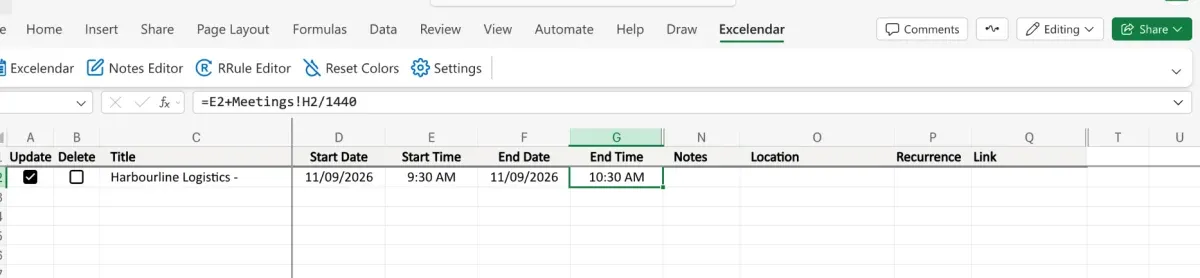
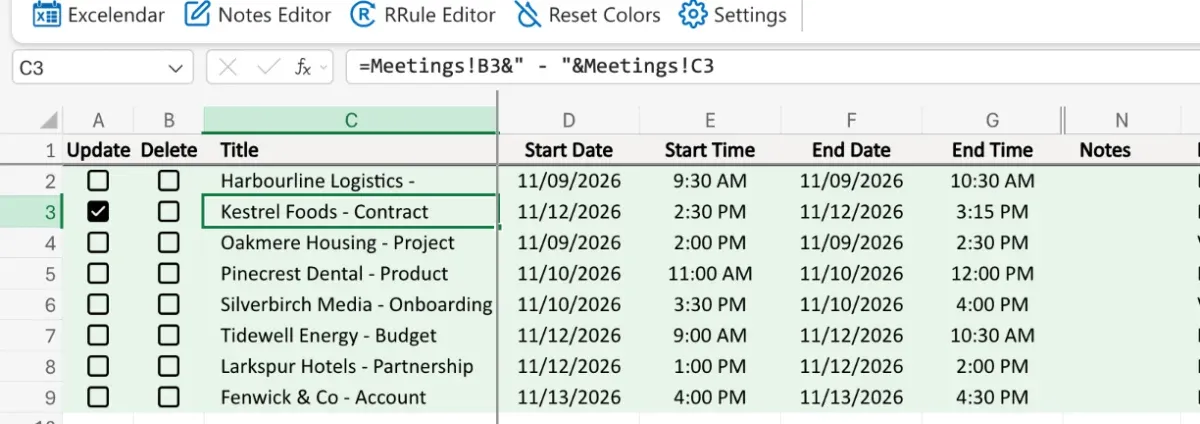
Instead of typing, each cell gets a formula pointing at the team’s tab. The title joins the client and the meeting name: =Meetings!B2&" - "&Meetings!C2.
Start Date is =Meetings!F2 and Start Time =Meetings!G2. End Date copies the start (=E2), and End Time adds the duration from column H, divided by 1440, the minutes in a day: =F2+Meetings!H2/1440.
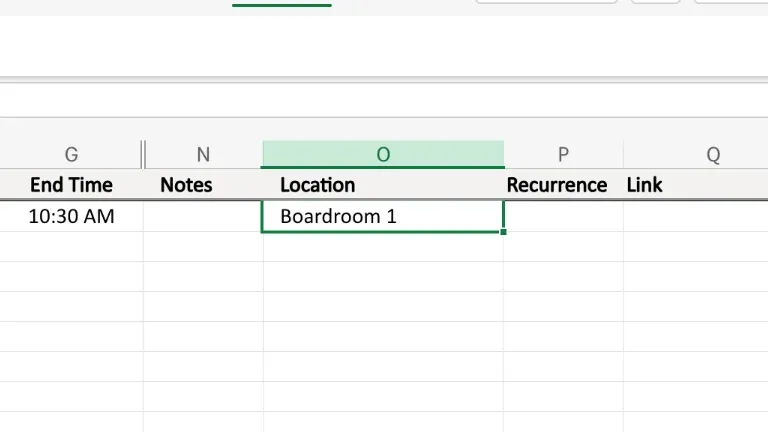
Location is =Meetings!I2, the room.
4. Fill down and export
Fill both blocks down to the last meeting with Ctrl+D. The formulas shift as they go, so each row reads its own line of the team’s tab.
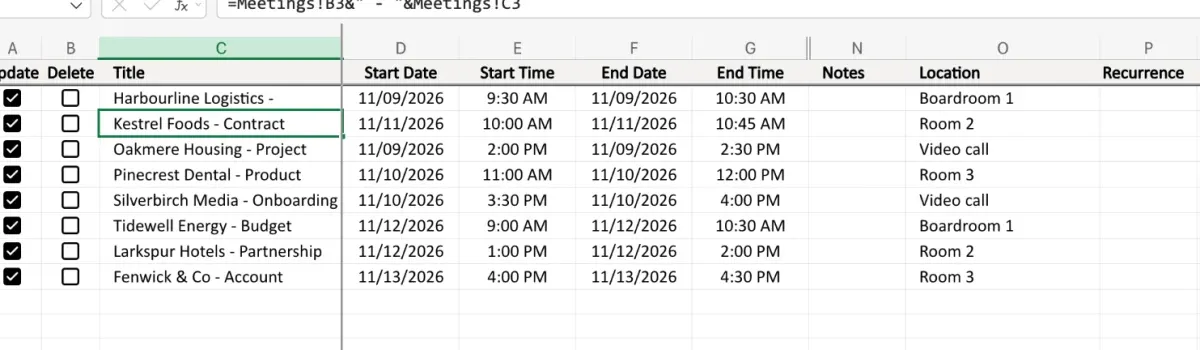
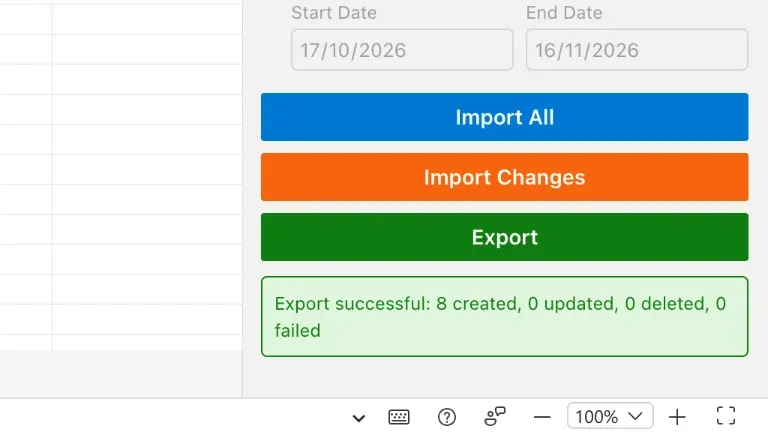
Open the Excelendar pane and click Export: all eight are created at once.
5. Change a meeting in the team’s sheet
The Kestrel Foods renewal moves to Thursday afternoon. Edit it on the Meetings tab, as usual.
Back on the Calendar tab, Kestrel Foods is already ticked for Update, though nobody touched it.
6. Export the change
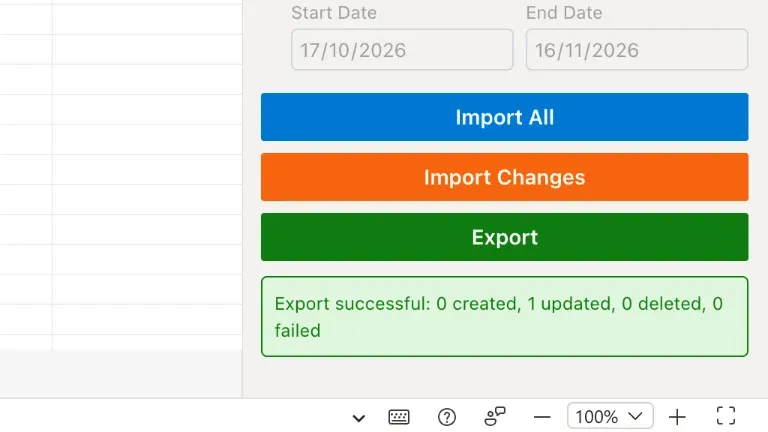
Export again, and only the move goes across.
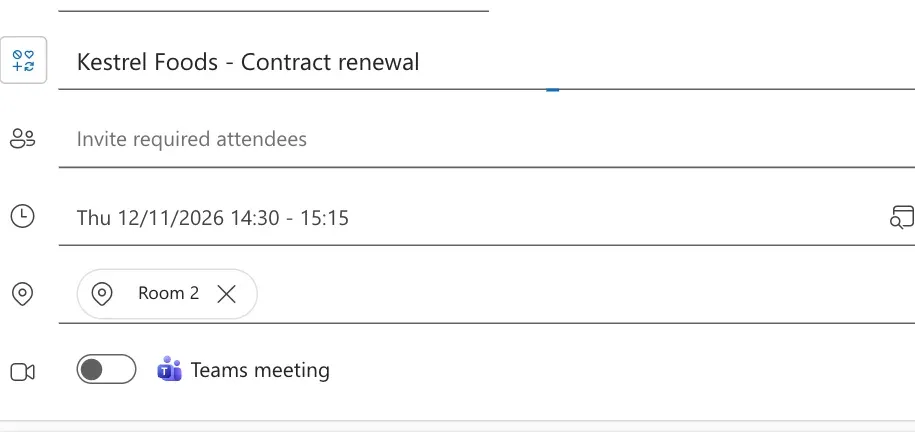
In Outlook, the renewal now sits on Thursday at 14:30.
Try it
Keep your team’s spreadsheet as it is, and let the calendar follow. Get Excelendar, and see the documentation for every option.