Use Excel Formulas for Your Outlook Events
Excelendar syncs whatever a cell shows, so Excel formulas can work out your Outlook events’ details. Calculate the end time from a duration column, and when a duration changes, the end time follows, the row is ticked for Update, and the next export moves the event in Outlook.
This guide replaces typed end times with formulas on a weekly dance timetable.
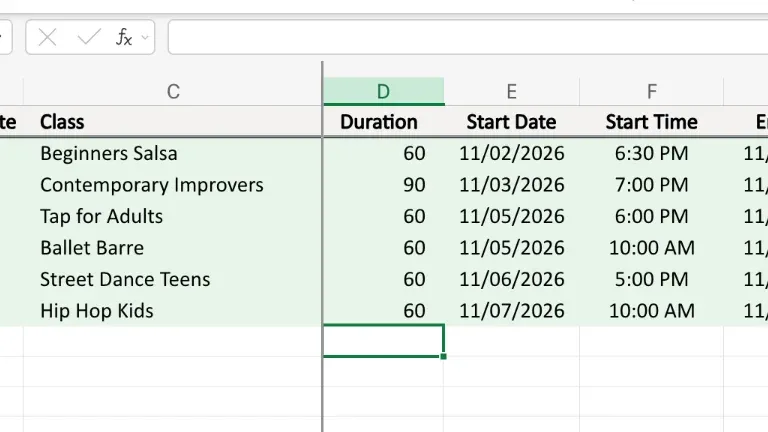
1. Add a Duration column
Insert a column of your own for how long each class lasts, in minutes. Most run for 60 minutes, and one for 90.
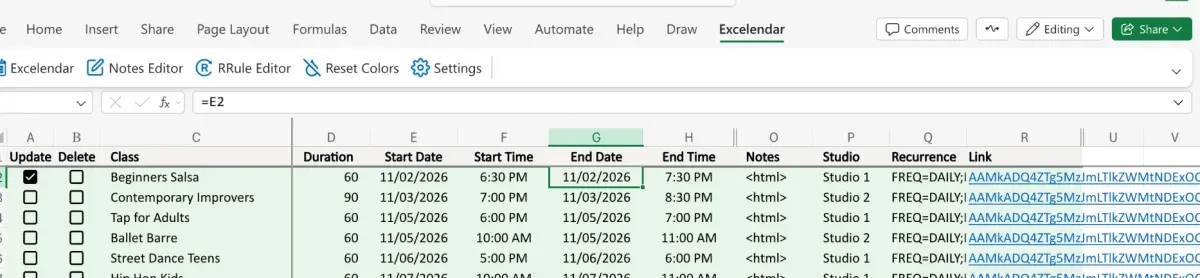
2. End Date: same as the start
In End Date, type =E2, so it always matches the start date.
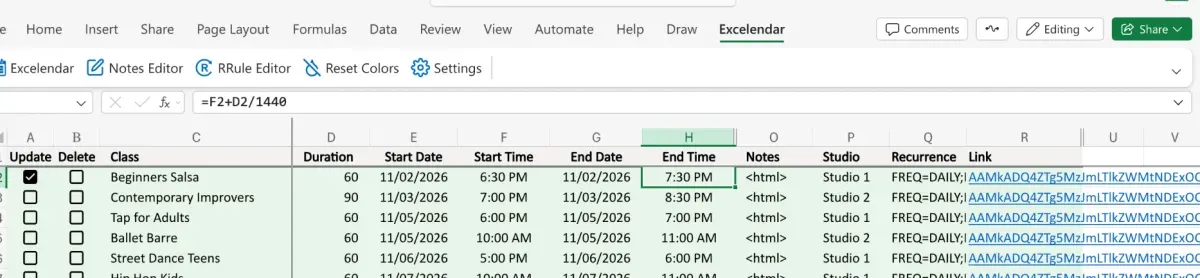
3. End Time: start plus duration
End Time takes the start and adds the duration: =F2+D2/1440. Excel counts time in days, so the minutes are divided by 1440, the number of minutes in a day.
Select both columns down to the last row and press Ctrl+D. The formulas fill down, and each row gets the right end time.
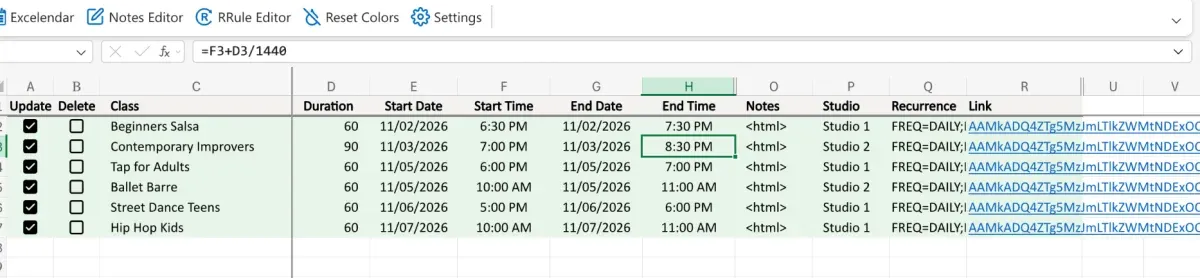
4. Export once
Open the Excelendar pane and click Export once, so the sheet and Outlook agree.
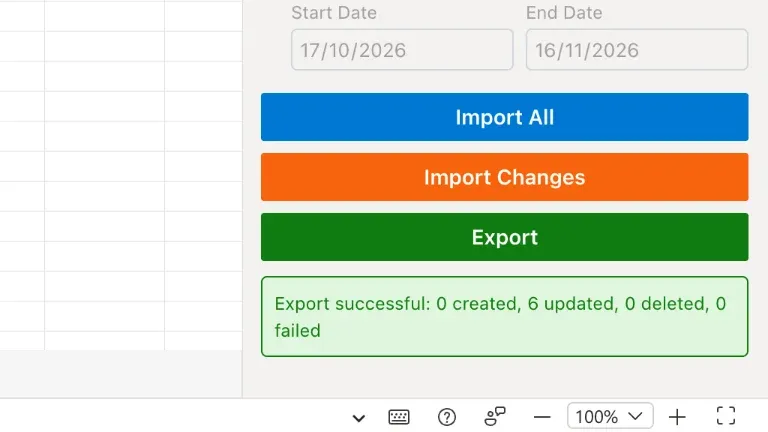
5. Change a duration
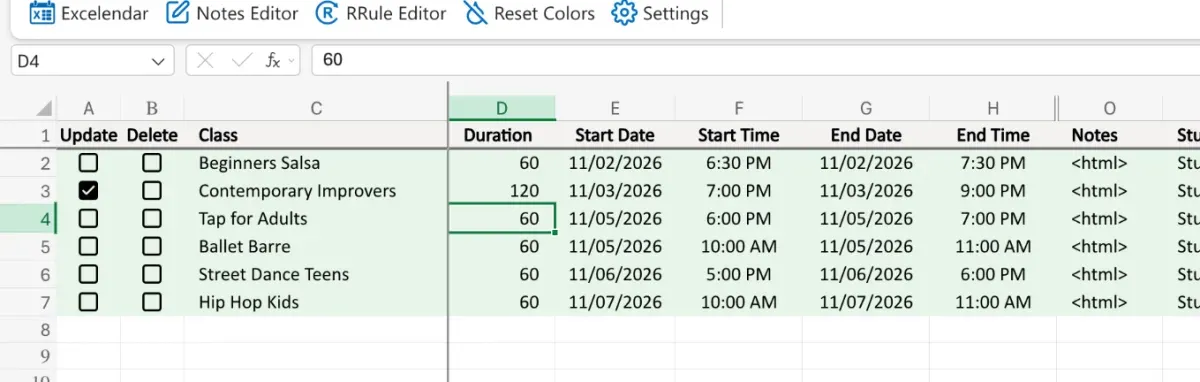
Contemporary Improvers now runs for two hours. Change 90 to 120: the end time follows, and Update ticks by itself.
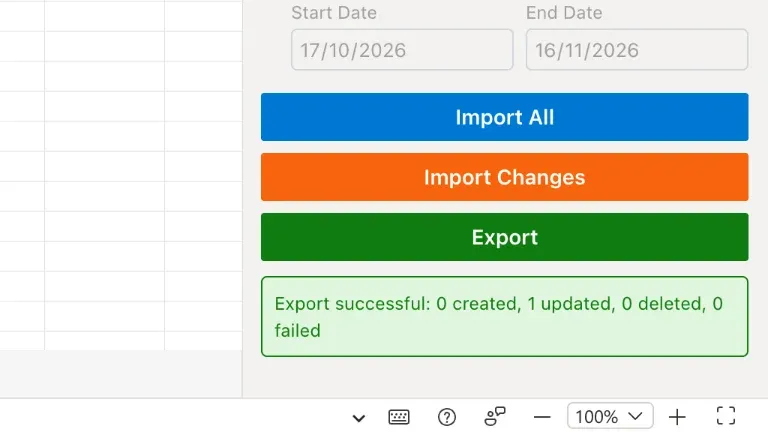
6. Export again
Export again, and just that one row goes across.
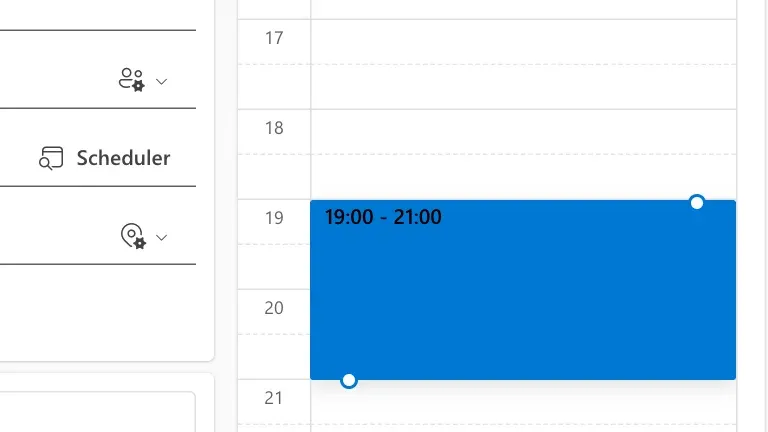
Follow the row’s link to Outlook: the whole Tuesday series now runs from 19:00 to 21:00.
Try it
One value edited, and everything falls into place. Get Excelendar, and see the documentation for every option.