
Import Your Outlook Calendar into Excel
To import your Outlook calendar into Excel, open the Excelendar pane on a blank sheet, choose the calendar and the dates, and click Import All. Excelendar builds the columns and puts each event on its own row, ready to review, edit and sync back.
This guide brings a month of gigs from an Outlook calendar into an empty sheet.
1. Open the Excelendar pane on a blank sheet
Start from a completely blank sheet and open the Excelendar pane. Nothing is configured here yet, so there’s no stored calendar.
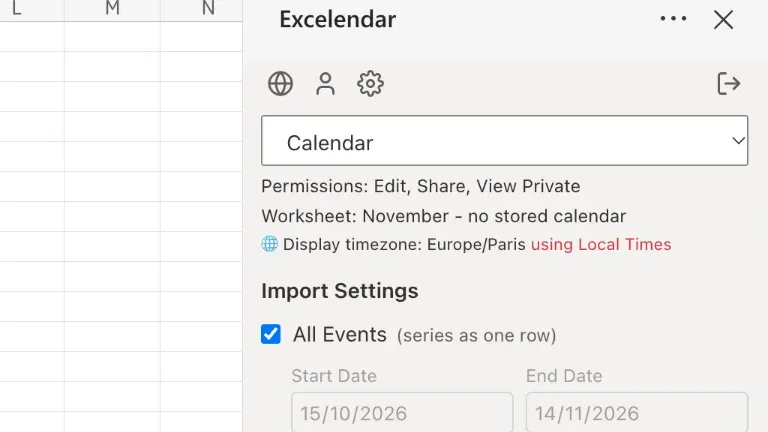
2. Choose the calendar
Choose the calendar to import from, here Lantern Live.
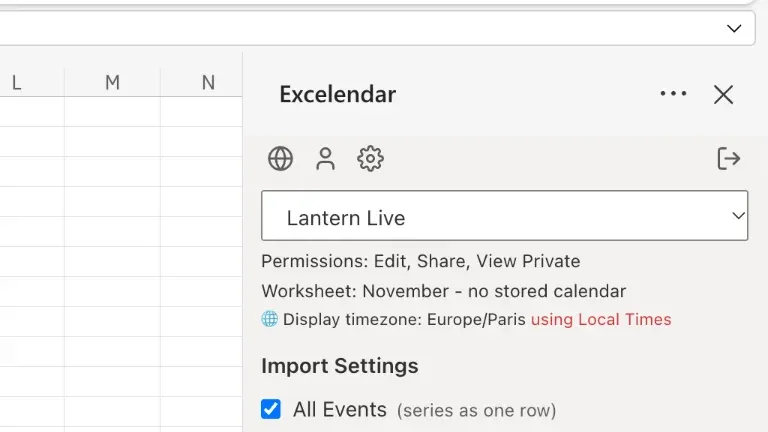
3. Set the dates
Set the dates you want, here the whole of November: 1 to 30 November 2026.
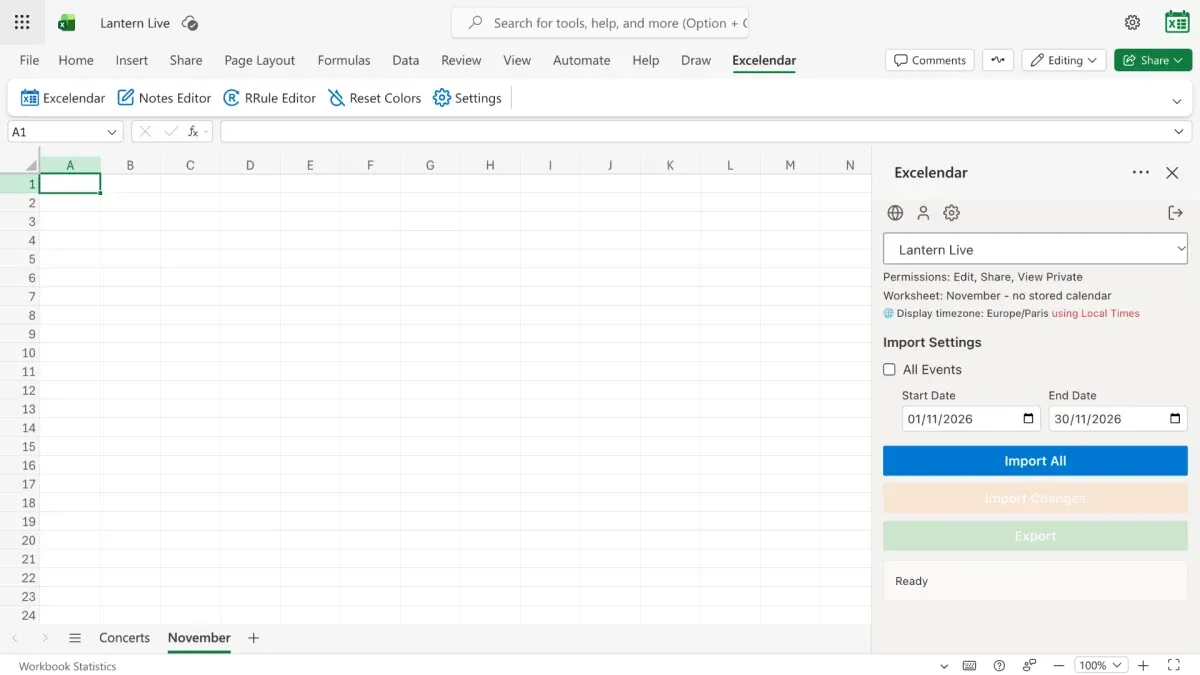
4. Click Import All
Click Import All, and a moment later every event in that range is pulled in.
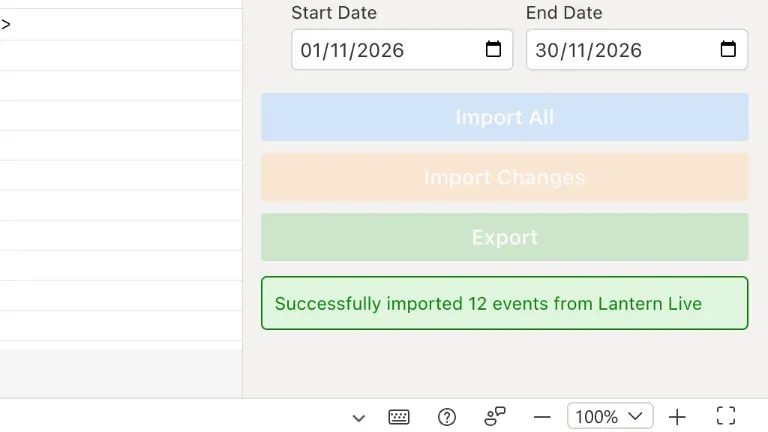
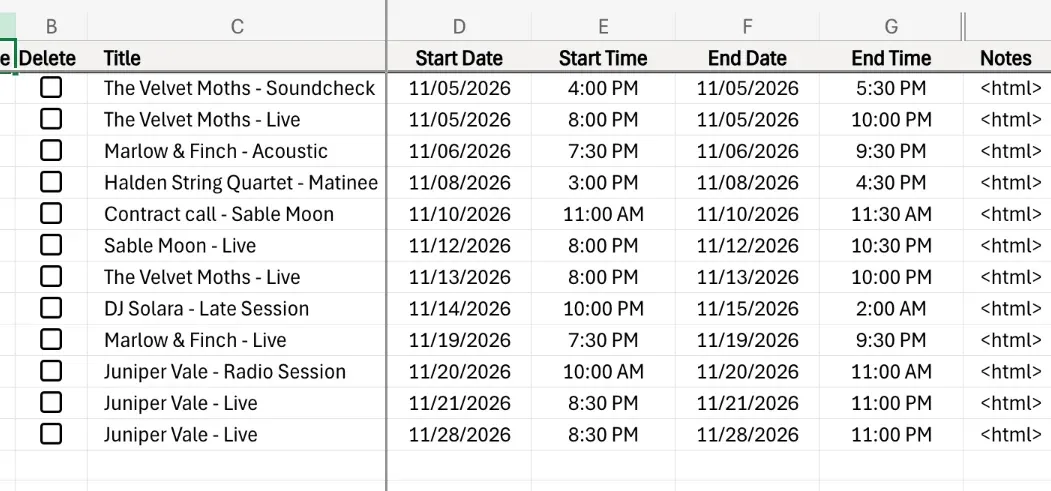
Every column is built automatically, and each gig lands on its own row.
5. Read and edit notes with the Notes Editor
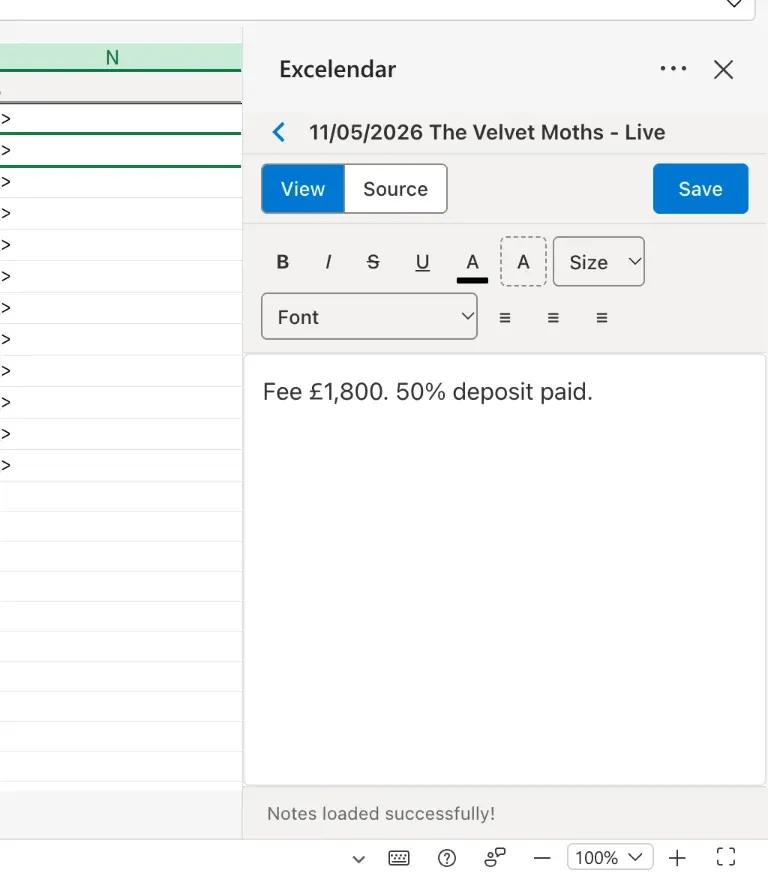
Notes arrive with their formatting intact, so in the grid they show as code. Select any row and launch the Notes Editor to read and edit them properly.
Try it
Your entire schedule in a spreadsheet, in seconds. Get Excelendar, and see the documentation for every option.