
Update Outlook Events by Editing Your Excel Sheet
To update an Outlook event from Excel, edit its row in the sheet and export with Excelendar: the changed row is ticked for Update automatically, and only that change goes to Outlook. Moving a date or renaming an event is just typing in a cell.
This guide reschedules one gig on a sheet that was already exported to Outlook.
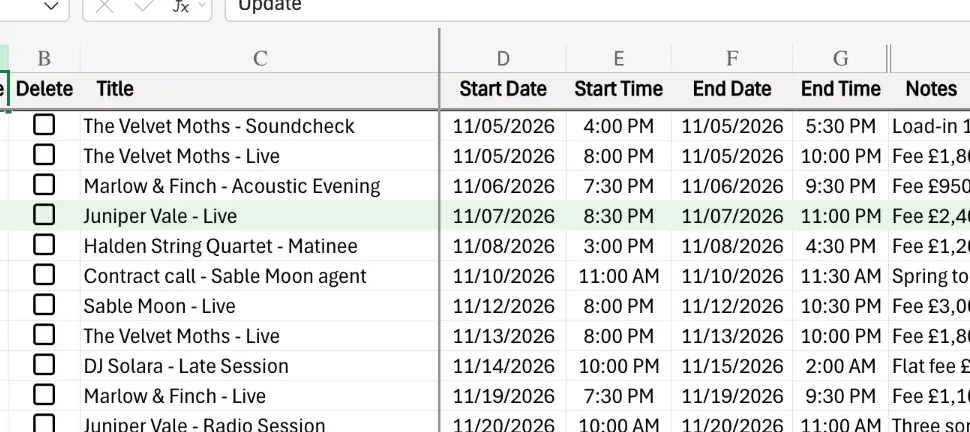
1. Find the event’s row
Each row in the sheet is linked to its Outlook event. Here, Juniper Vale’s Manchester show is moving from 7 November to 28 November.
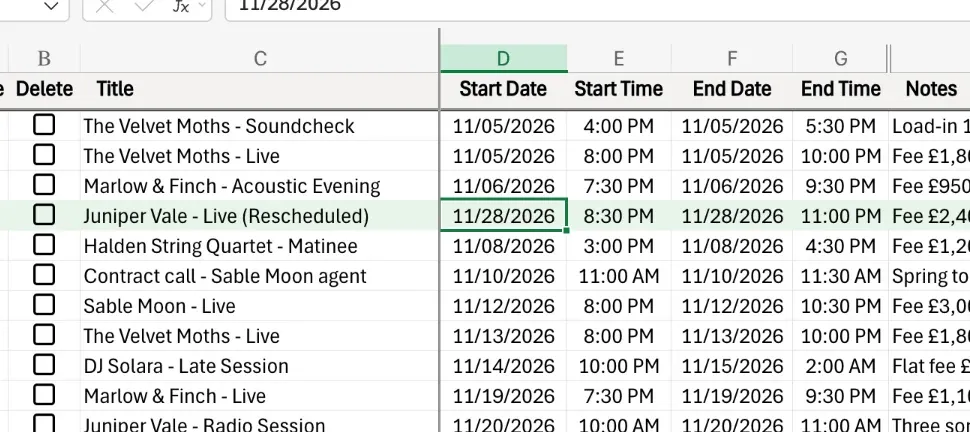
2. Edit the row
Type the new start and end dates, then add a note to the title: “(Rescheduled)”.
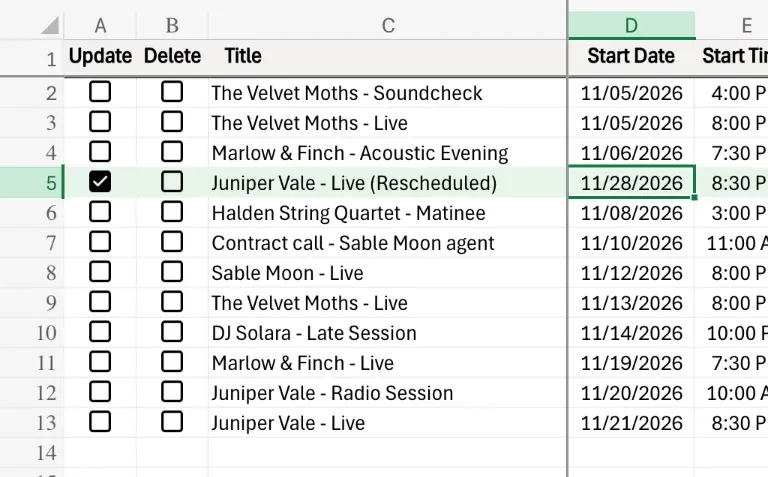
3. Update is ticked for that row only
Straight away, Update is ticked for the edited row, and for no other.
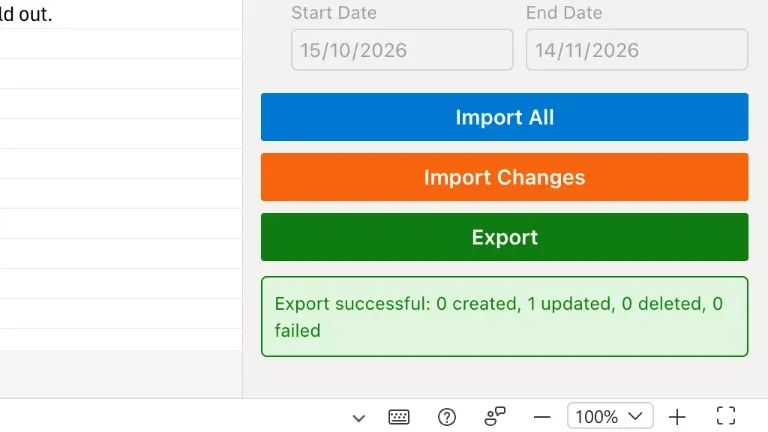
4. Export
Open the Excelendar pane and click Export. Just that booking goes across: the status reports one event updated.
5. Check the event in Outlook
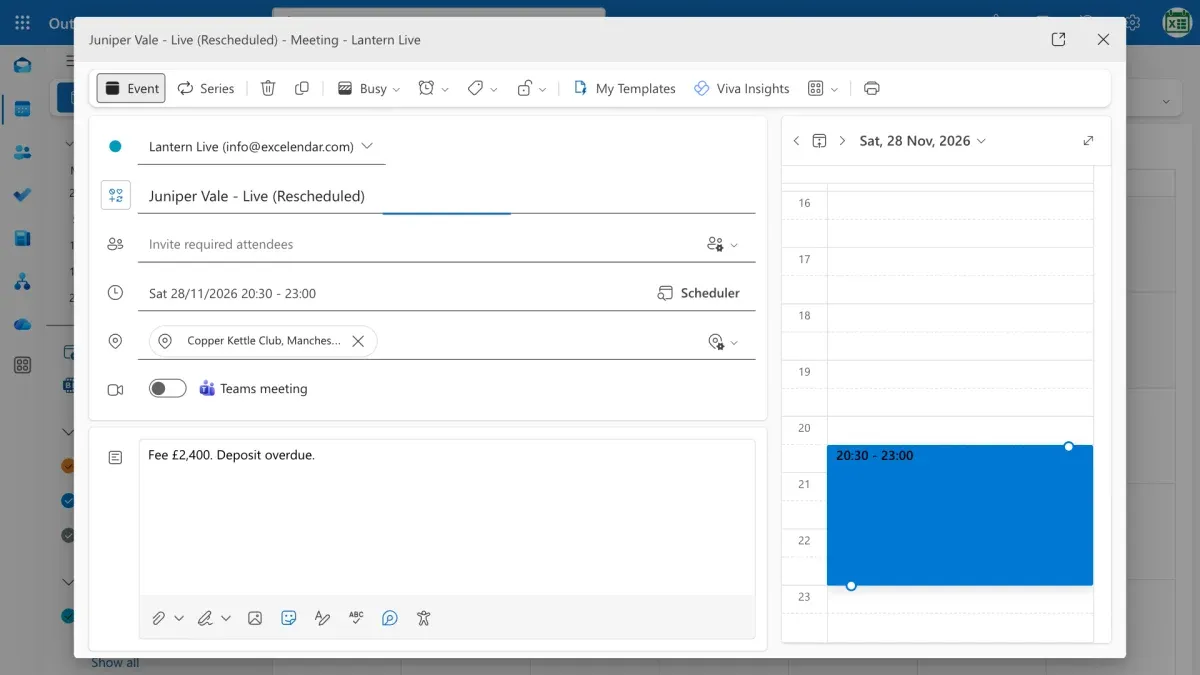
Follow the row’s link, and there it is: the new date and the new name.
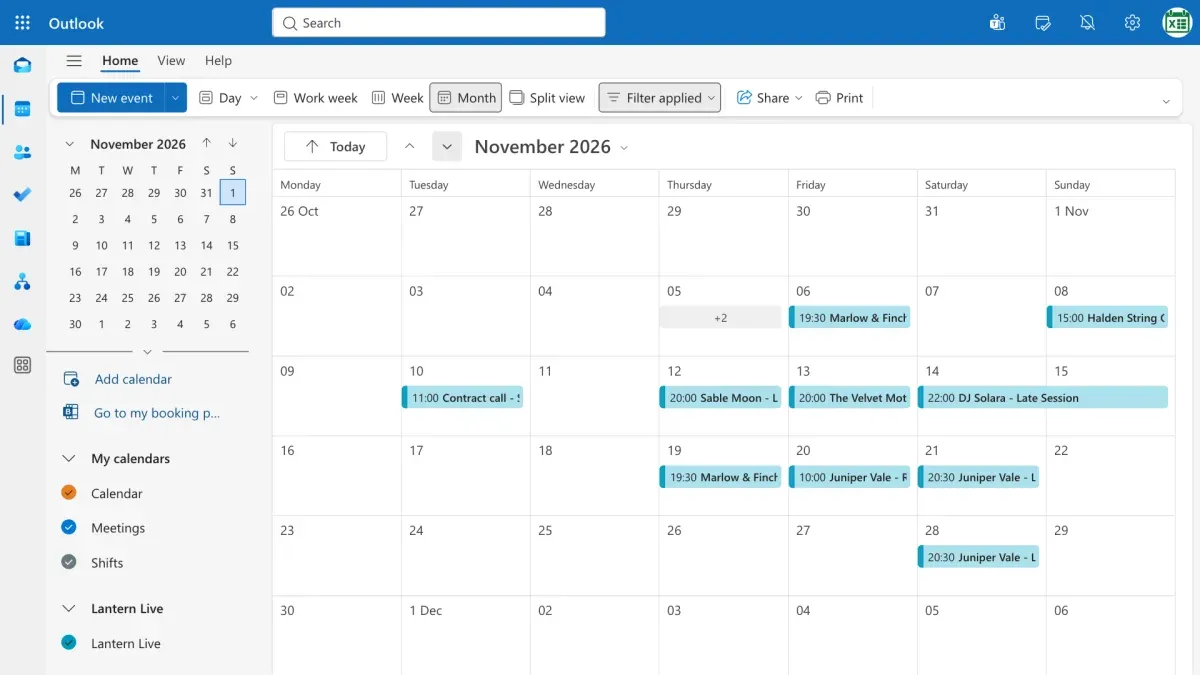
The month view shows the gig three weeks later, with nothing left on 7 November.
Try it
Tweak the sheet, sync, and your calendar keeps up. Get Excelendar, and see the documentation for every option.