
Rename Columns and Add Your Own in Excel, Still Synced to Outlook
You can rename Excelendar’s column headings and add columns of your own, and the sheet keeps syncing to Outlook. Renamed columns still map to the same event details, and your own columns stay in Excel, never sent to the calendar.
This guide builds a dance-class timetable from a blank sheet and makes the layout its own.
1. Set up a blank sheet
Open the Excelendar pane, choose Dance Classes, an empty calendar, and click Import All. There’s nothing to bring in yet, but the sheet is set up: the header row is in place.
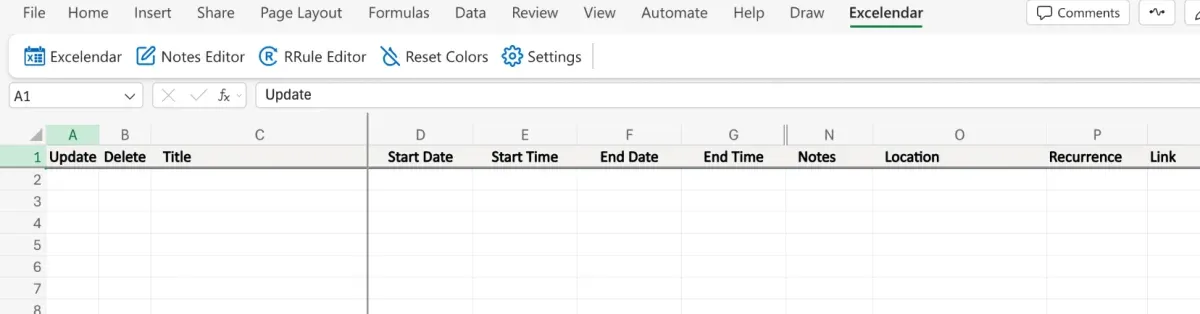
2. Type the first classes
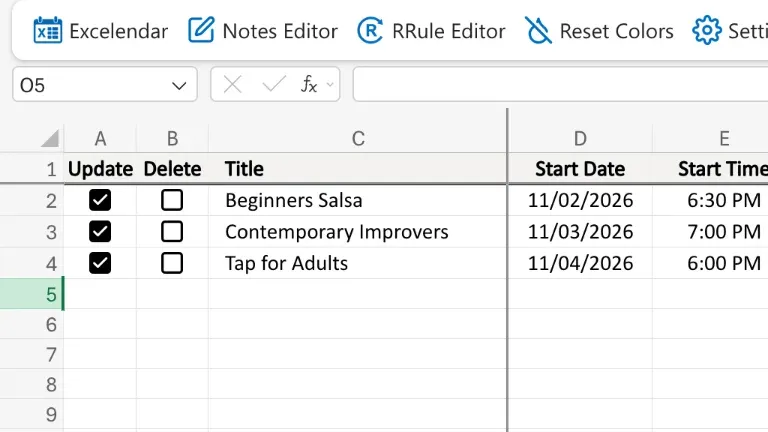
Type the first three lessons: name, date, times and studio. Update ticks itself on each row.
3. Export
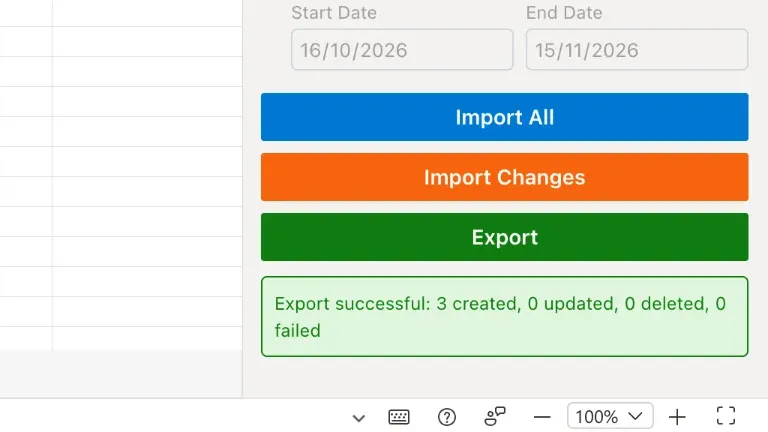
Click Export, and three events are created.
4. Add a column of your own
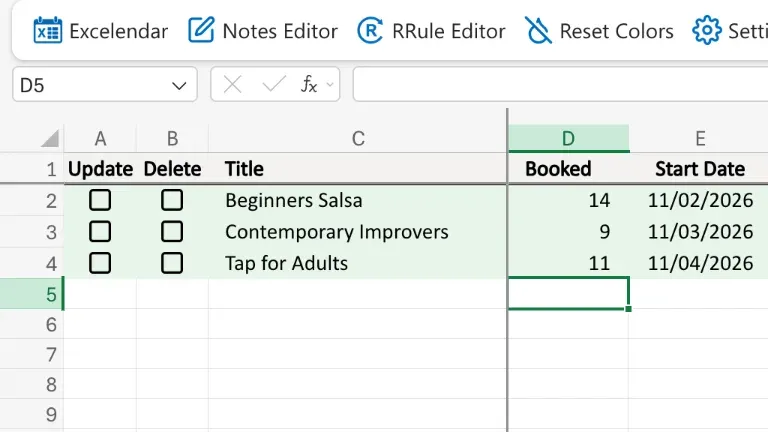
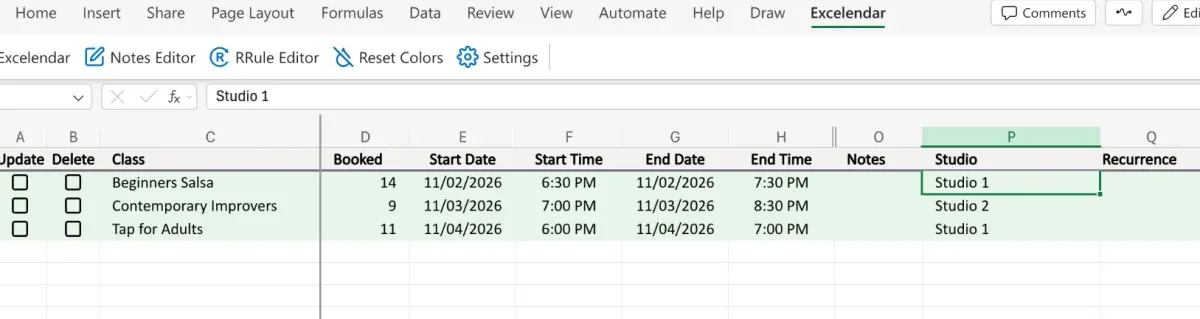
Insert a column of your own, like the number of students booked. Excelendar leaves it alone, so Update isn’t ticked.
5. Rename the headings
Now rename any heading: Title becomes Class, and Location becomes Studio.
6. Add more rows and export again
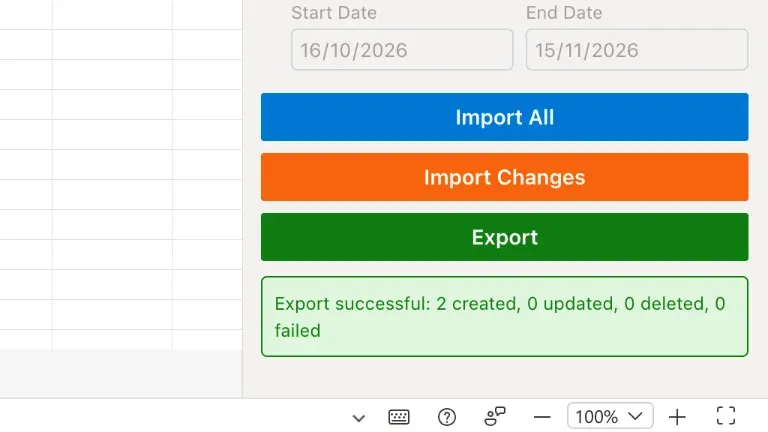
Add two more classes beneath, using the new names, with a count for each. Export again: only the two additions go across, and the rest stays put.
7. Check Outlook
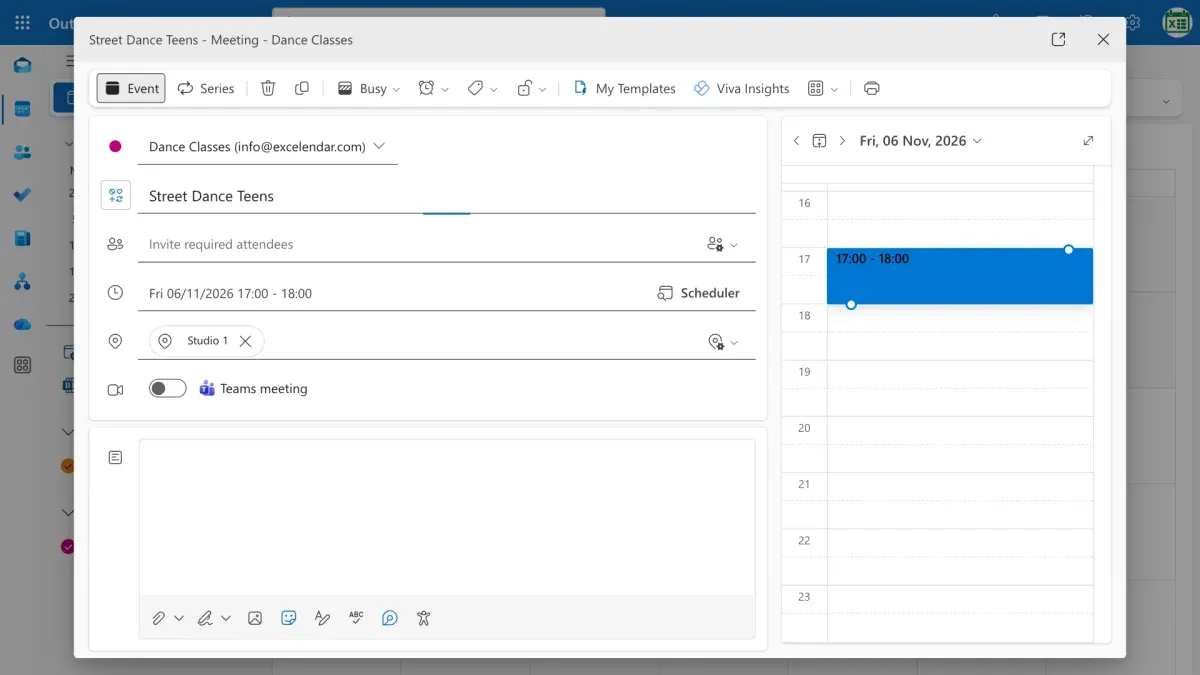
In Outlook, each class shows its studio, while the booking numbers stay in your spreadsheet.
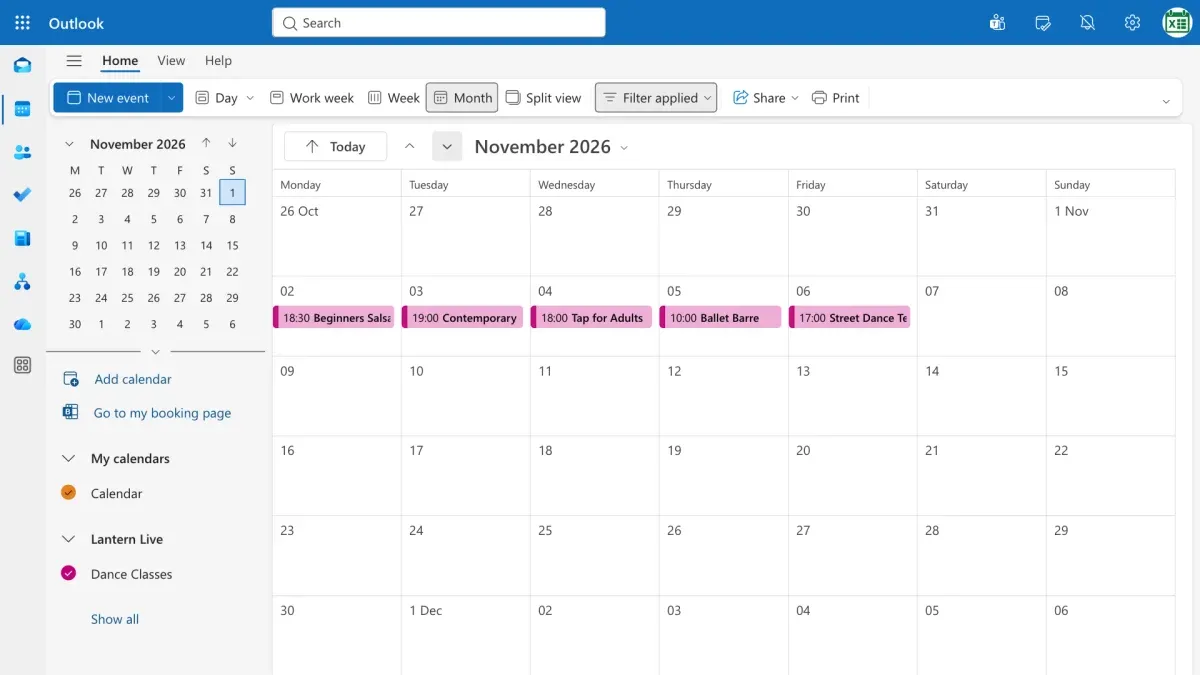
The month view lays out the whole week, all five classes in place.
Try it
Rename it, reshape it, it still syncs. Get Excelendar, and see the documentation for every option.