
Make Outlook Events Repeat Every Week from Excel
To make Outlook events repeat from Excel, put a recurrence rule in each row’s Recurrence column and export with Excelendar. Build the rule once with the RRule Editor, copy it down with Fill Down (Ctrl+D), and every event becomes a series in Outlook.
This guide turns a week of dance classes into a timetable that runs until the end of term.
1. One-off events to start with
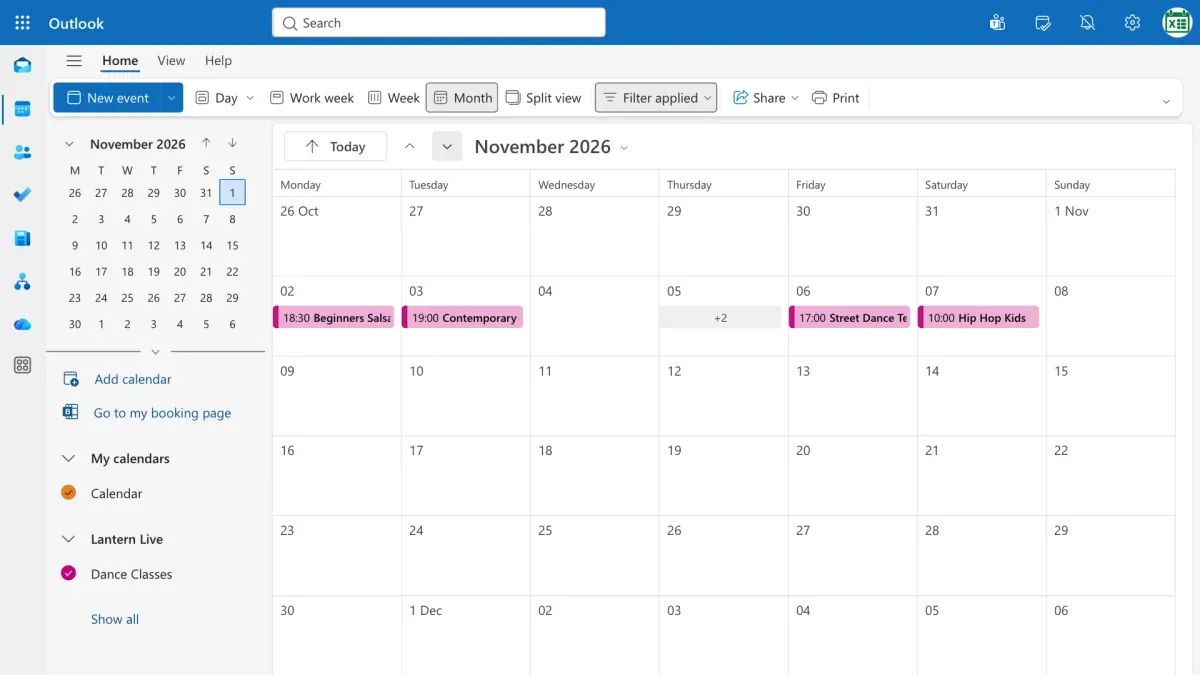
Right now, each class happens just once, in the first week of November.
2. Build the rule with the RRule Editor
Select the first class, Beginners Salsa, then open the RRule Editor from the ribbon. Choose Daily, every 7 days, and set it to end on 18 December.
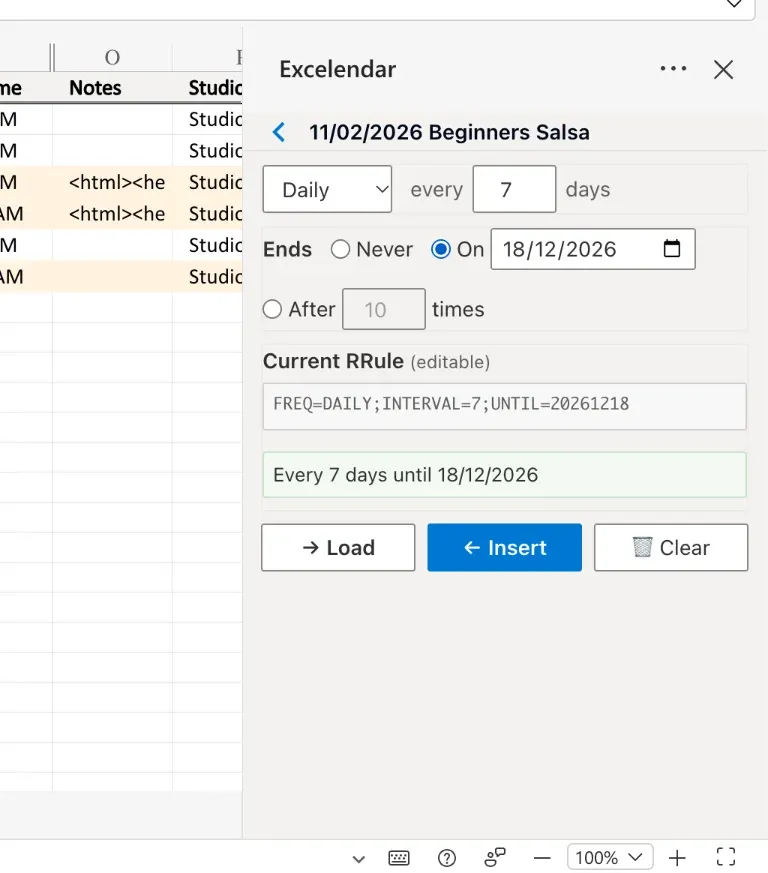
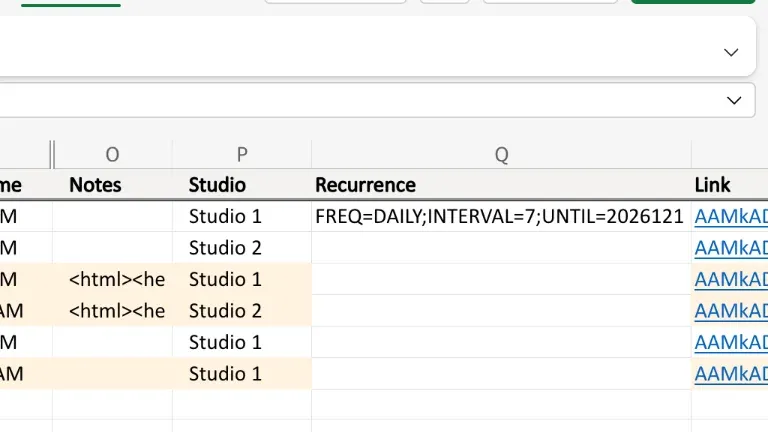
Click Insert, and the rule drops into the Recurrence column.
3. Copy it to every row
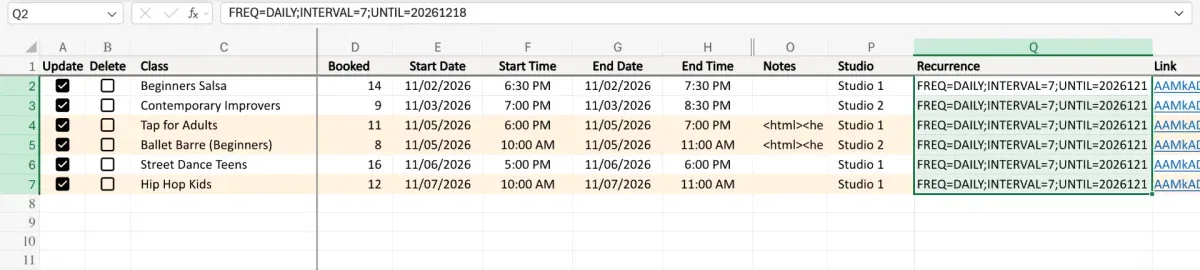
Every 7 days, rather than weekly, means one rule suits any weekday: each class repeats on its own day. Select the Recurrence column down to the last row and press Ctrl+D to copy the rule down.
4. Export
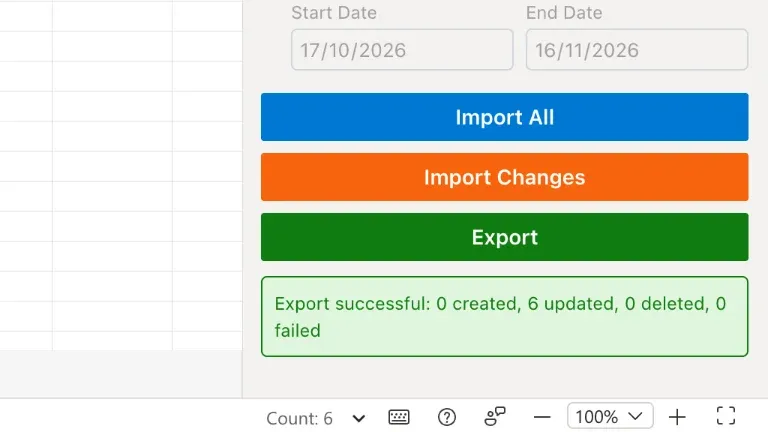
Update is now ticked on all six rows. Open the Excelendar pane and click Export.
5. Every class, week after week
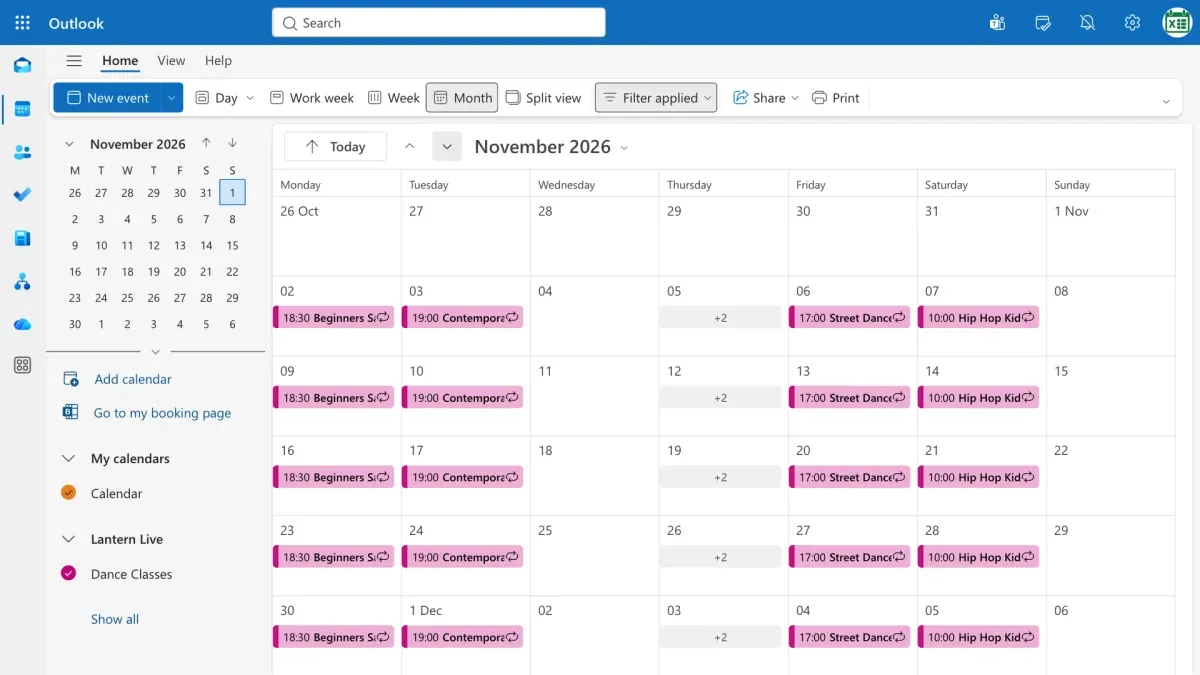
In Outlook, every session now repeats week after week, all the way to the holidays.
Try it
One rule, one shortcut, a whole term planned. Get Excelendar, and see the documentation for every option.